PV Phone Identity — User Guide
Turn your customers’ phone numbers into a faster, friendlier way to sign in, check out, and stay in the loop — with SMS and WhatsApp built into WordPress and WooCommerce.
Read the guideWelcome
Passwords get forgotten. Emails end up in spam. Phones are almost always close at hand — and that is exactly what PV Phone Identity puts to work for your store.
Customers can enter their phone number and a one-time code sent by SMS or WhatsApp instead of remembering another username and password. The same verified number can then receive order confirmations, shipping updates, and delivery notices.
Contents
Select any section to jump directly to it.
🚀 Getting Started
Install PV Phone Identity like any other WordPress plugin: upload it from Plugins → Add New → Upload Plugin, or place it in your plugins folder, then activate it from the Plugins screen.
After activation, a Phone Identity menu appears in the WordPress dashboard. This becomes the home base for every setting described in this guide.

🔑 Activating Your License
Your license confirms the purchase and enables automatic updates. Find the key in the purchase confirmation email or under My Licenses in your Plugins Vault account.
Before you continue
1. Open Phone Identity → Settings → License. 2. Paste the key into the License Key field. 3. Select Activate License and confirm that the status changes to Active.
If a renewal is missed, your configured sign-in experience continues working. Only automatic updates pause until the license is active again.
⚙️ Choosing How Customers Sign In
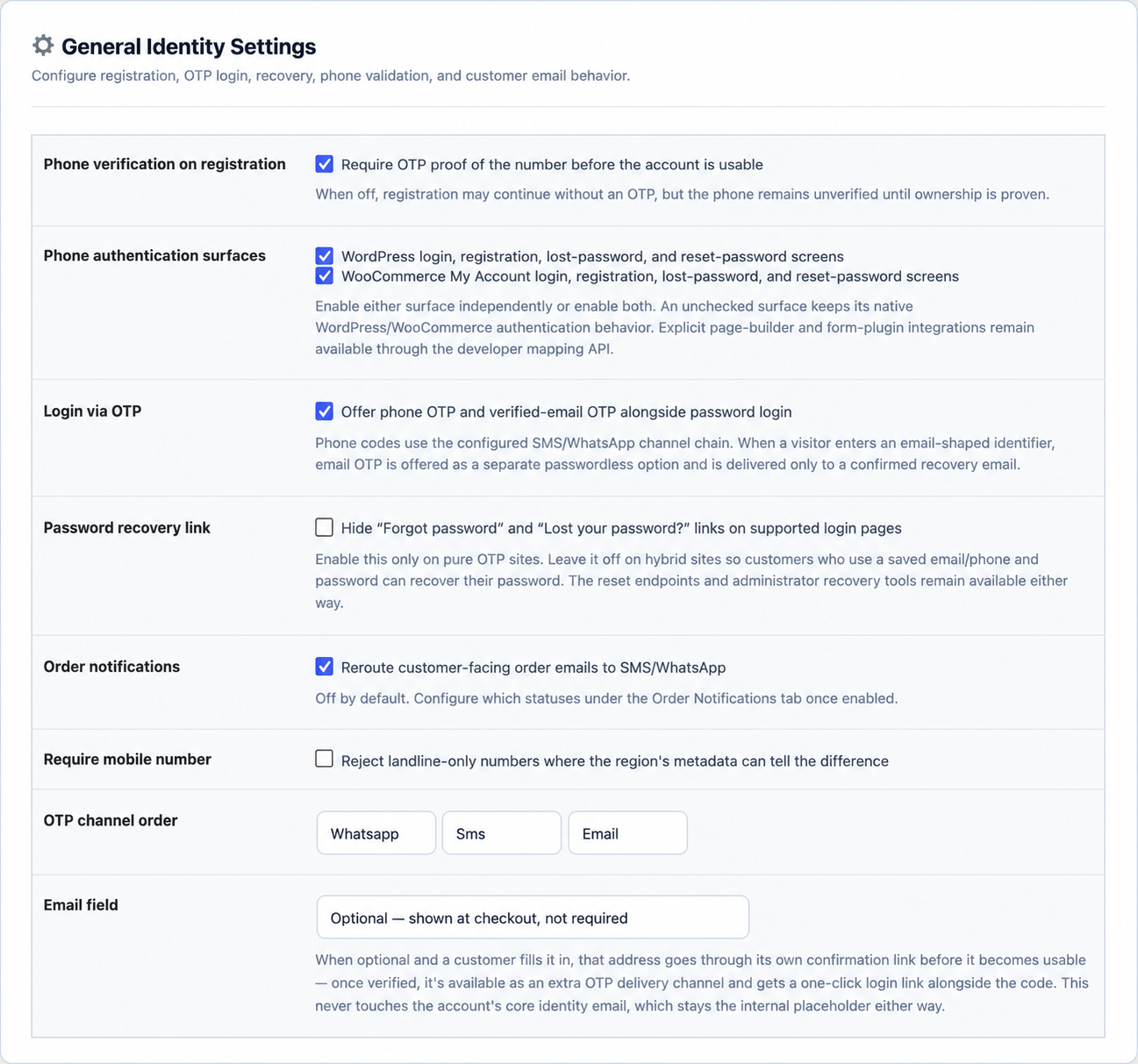
General Settings controls where phone authentication appears and how it behaves. Start with the surfaces your customers actually use, then enable only the options your store needs.
Registration verification
Require new customers to confirm their number before the account becomes usable, or allow registration immediately and mark the number as unverified.
OTP and password access
Offer one-time-code login alongside saved passwords. Hide the recovery link only after your store has deliberately moved to a fully passwordless flow.
Notifications, mobile validation, and channel order
Enable order notifications, optionally reject landlines, and choose the fallback order for WhatsApp, SMS, and email.
Email behavior
Hide email completely or make it an optional backup for codes and one-click login links.
🌍 Supported Countries & Number Formats
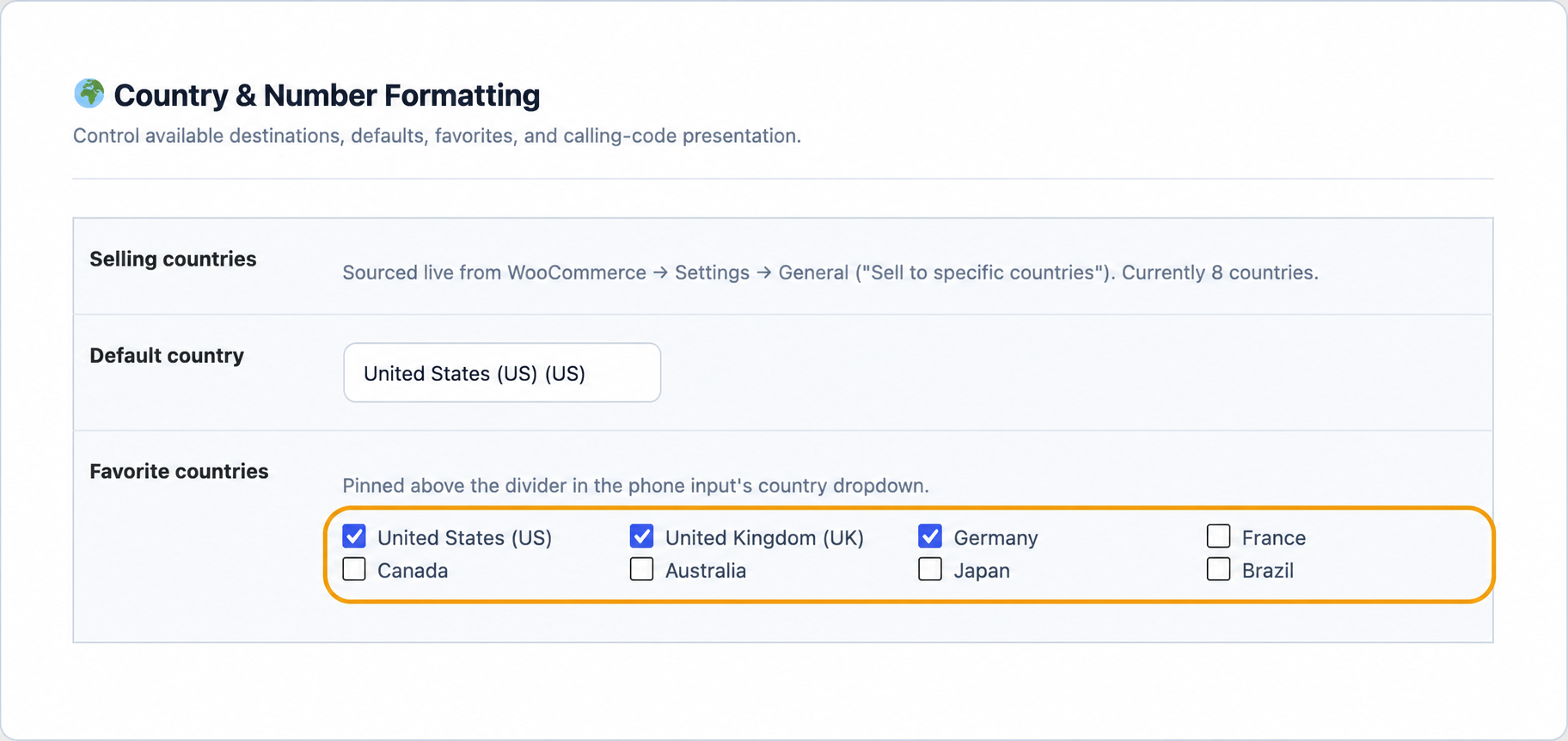
PV Phone Identity formats phone numbers for every country your store sells to, including the appropriate flag and calling code. The country list follows your WooCommerce selling settings.
Choose a default country for most customers and pin favorite markets above the rest of the searchable list. Single-country stores can present a fixed calling code instead.
📡 Connecting SMS & WhatsApp
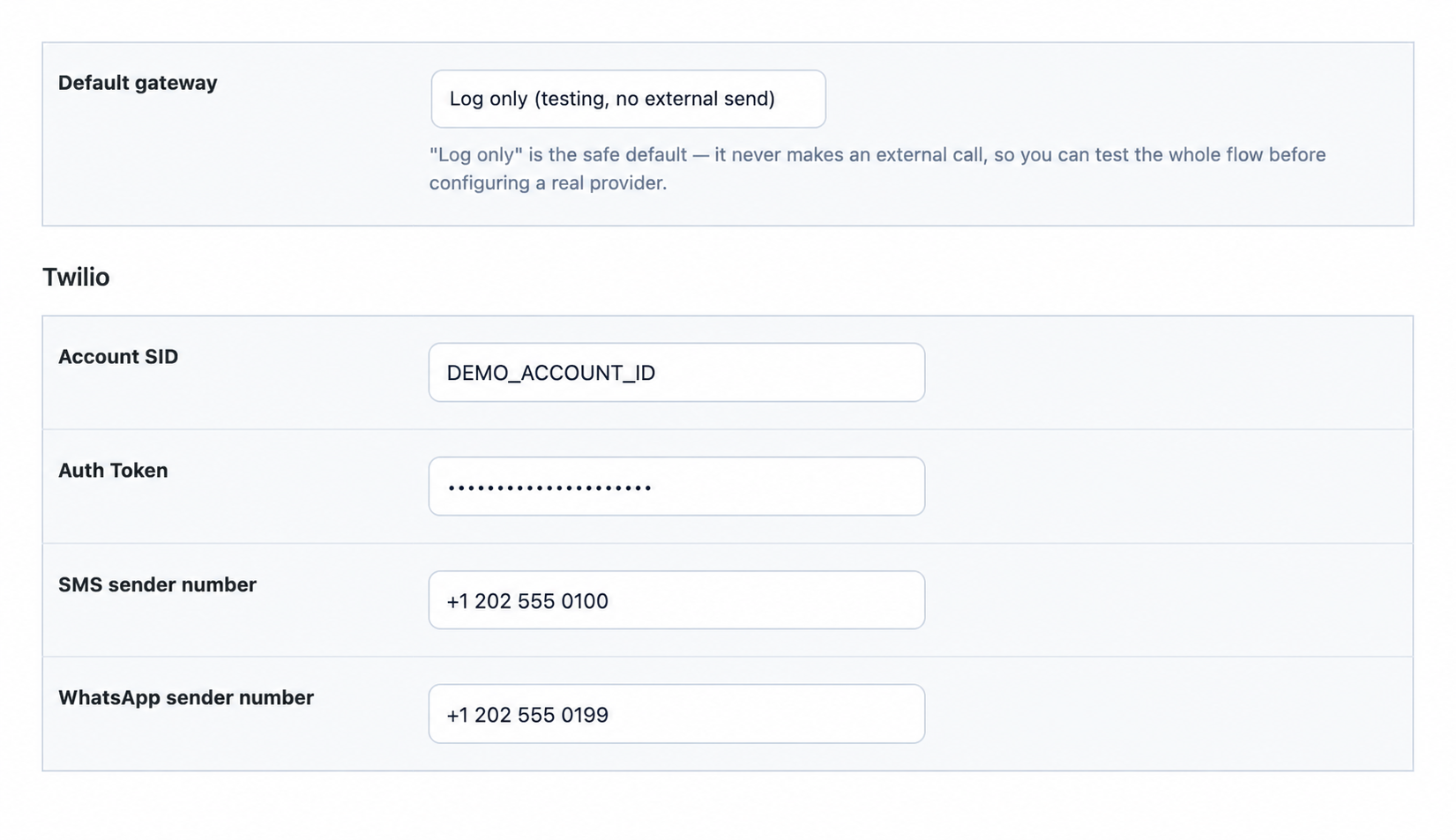
Messaging providers deliver verification codes and order updates. Use Log only while testing so messages are recorded privately without contacting a real phone.
Connecting a provider
Copy the required provider account identifier, token, and approved sender values into the matching gateway fields. Keep secrets in the WordPress settings screen and never publish them in documentation or screenshots.
Twilio can handle SMS and WhatsApp from one account. Meta WhatsApp Cloud API connects directly to WhatsApp Business Platform. Country-specific routing can override the default provider for selected markets.
🎨 Matching Your Brand
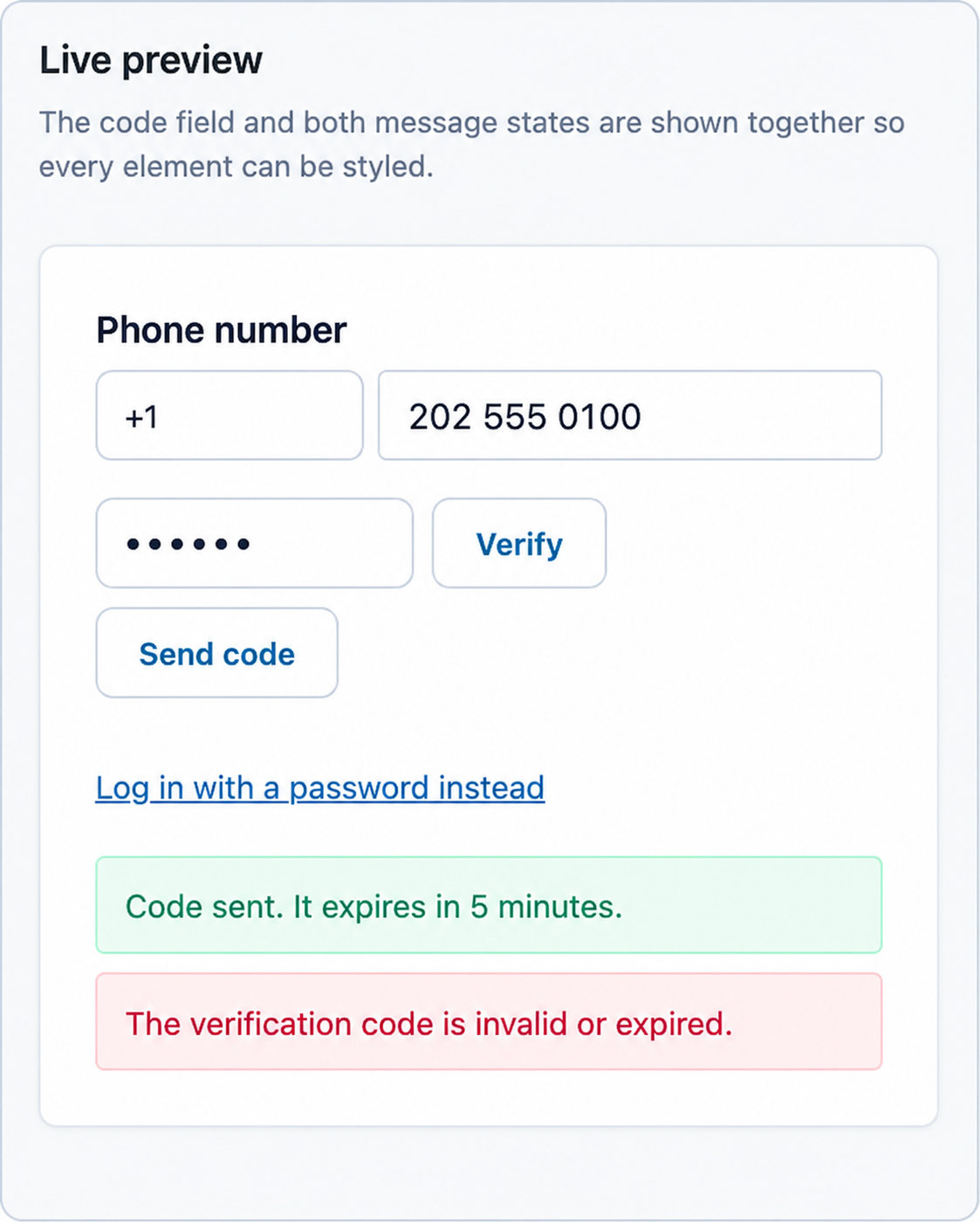
Turn on custom styling to make the phone and OTP interface feel native to your store. The live preview updates as you change colors, fonts, spacing, borders, buttons, links, and feedback messages.
Use the preview to test contrast, readable field labels, clear focus states, and error messages before saving. Reset restores the defaults if you want to start again.
🔔 Keeping Customers Updated on Their Orders
After enabling Order notifications in General Settings, choose which order stages send a message and the channel order used for each stage.
Enable the moments that matter most — order received, payment confirmed, shipped, completed, or another store-specific status. Stages left disabled continue using the normal email behavior.

✉️ Writing Your Own Messages
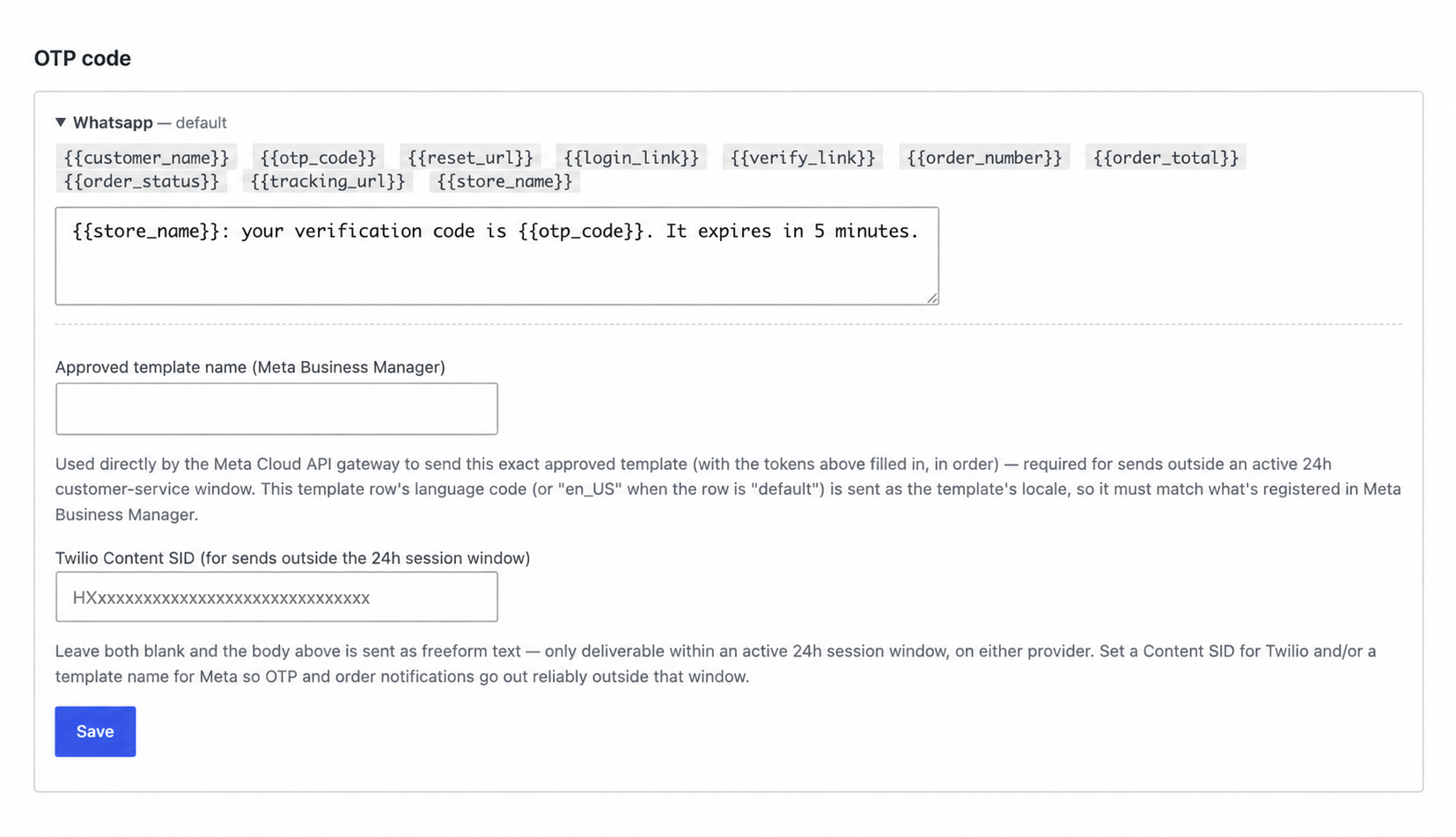
Rewrite verification, password-reset, and order messages in your own voice. Placeholders insert values such as the customer name or order number when the message is sent.
SMS and WhatsApp can use different wording, and translations can fall back to your default language. For WhatsApp messages sent outside an active conversation, create and approve a matching template in Meta WhatsApp Manager.

📜 Monitoring Activity
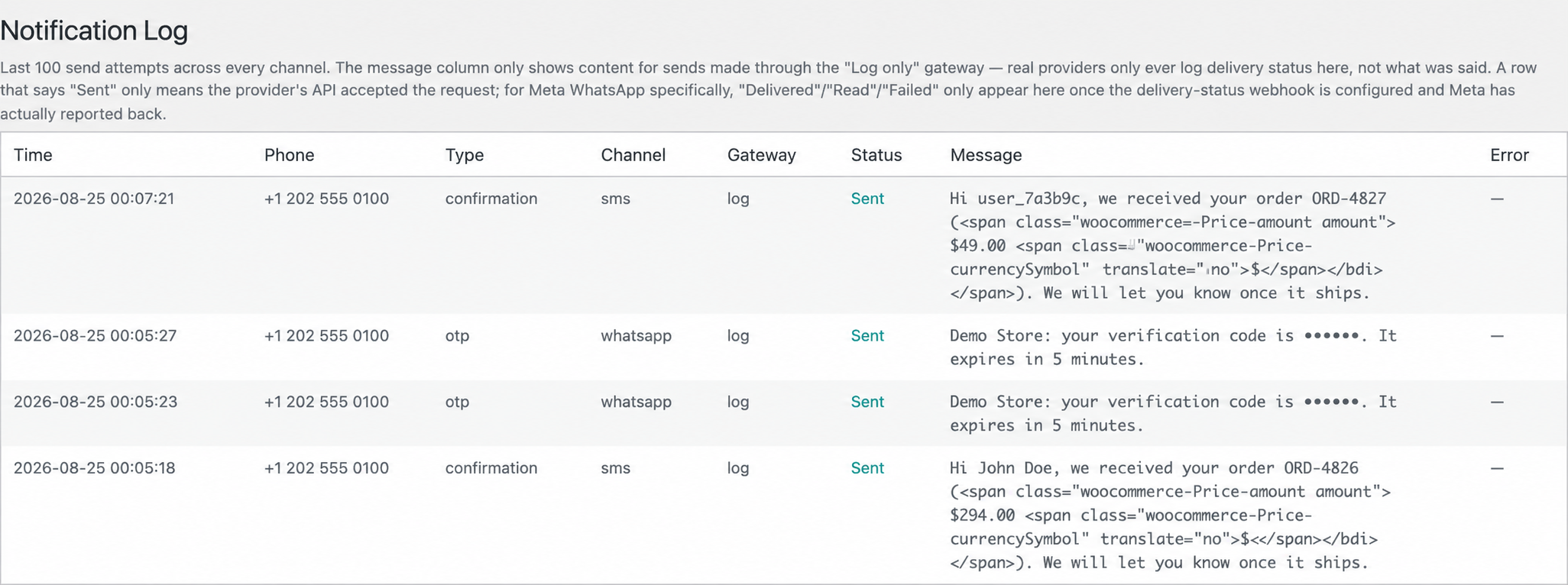
The Notification Log shows recent verification codes, password resets, and order updates across every channel, newest first, together with their handoff status.
Log only testing can display the exact demo wording for review. Once a real provider is active, use delivery status while keeping customer message content private.
💬 The WhatsApp Command Center
Phone Identity → WhatsApp provides a dedicated place to test a provider connection and configure delivery receipts for Meta Cloud API.
Send a test safely
Choose a connected provider and use a designated test number. Never expose live numbers, tokens, App Secrets, or verification tokens in public screenshots.
For delivery receipts, copy the callback URL into Meta, use the same private verify token on both sides, subscribe to the messages webhook field, and store the App Secret only in the protected settings screen.

🔓 The Customer Journey: Signing In
Phone sign-in appears on the existing login screen. Customers enter a number, request a code, and sign in without learning a new interface or visiting a separate page.
Customers who prefer a saved password can switch to it when password access remains enabled.

📝 The Customer Journey: Creating an Account
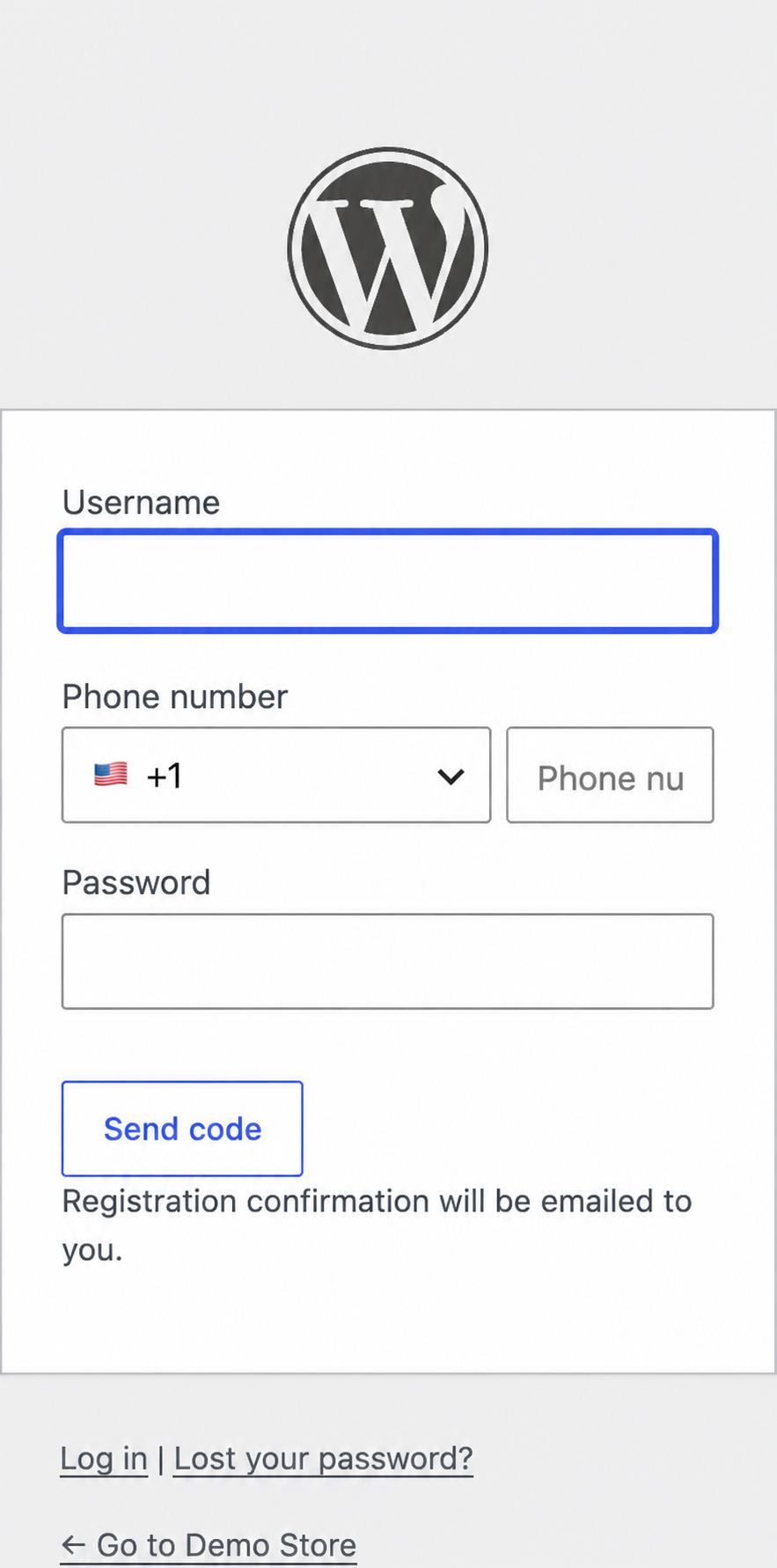
Registration, verification, and the first login happen in one sequence. A customer supplies a phone number and password, requests a code, and confirms ownership of the number.
The flow avoids a separate email-confirmation step while preserving the option to collect a backup email later.
👤 The Customer Journey: Managing Their Details
From My Account, customers can change their phone number and verify the replacement with a fresh code. If email is optional, they can also add a backup address for codes and one-click login links.

🛒 The Customer Journey: Checking Out
At checkout, the phone number becomes the primary contact value. Email can remain optional or hidden, and customers can opt in to WhatsApp order updates with a single checkbox.


💡 Frequently Asked Questions
Do I need a real provider to test the plugin?
No. Log only lets the store owner test registration, sign-in, checkout, and message wording before connecting a live provider.
Will customers lose password access?
Not unless you choose that configuration. Phone login can sit alongside the existing password form.
What happens to the email field?
It can be hidden or offered as an optional backup. It does not have to block checkout.
Can SMS and WhatsApp use different providers?
Yes. Connect multiple providers, choose one for each channel, and optionally route selected countries differently.
What happens when a landline is entered?
Enable Require mobile number to reject landline-only numbers when the store’s country data can identify them.